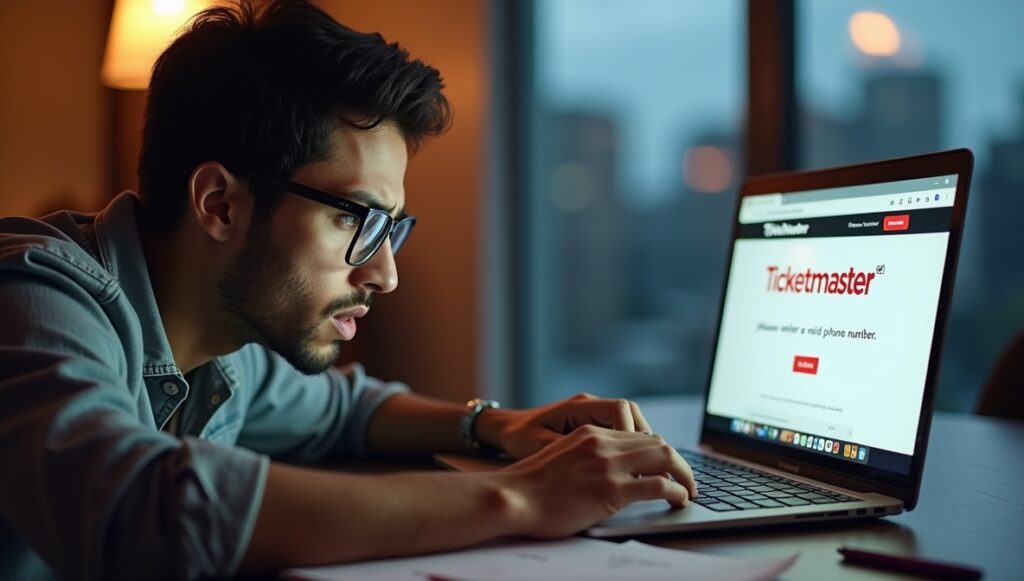
Have you ever been on the edge of your seat, fingers flying across the keyboard, ready to secure those dream concert tickets, only to be stopped dead in your tracks by the dreaded message: Ticketmaster please enter valid phone number?
It happens to the best of us. One moment you are about to checkout for Taylor Swift, Coldplay, or your favorite NBA playoff game, and the next, you are staring at an error that feels like it’s personally sabotaging your plans. This frustrating roadblock has plagued countless fans over the years, turning excitement into exasperation in seconds.
But here’s the good news: you are not alone, and more importantly, this issue is almost always fixable.
Why Does Ticketmaster Show “Please Enter a Valid Phone Number”?
Ticketmaster uses phone number verification as a core security feature. The platform sends a one-time verification code via SMS to confirm you’re a real person and not a bot or scalper. This helps prevent automated purchases that drive up resale prices and leave genuine fans empty-handed.
However, the system isn’t perfect. The “please enter valid phone number” error typically triggers when:
- The format of the number doesn’t match what Ticketmaster expects
- Your carrier or phone type isn’t fully supported by their verification system
- You are using a virtual, VoIP, or burner number
- There is a temporary glitch, cache issue, or browser conflict
- Your number is from a prepaid, budget, or newer mobile provider that hasn’t been whitelisted
Many users report this issue specifically with carriers like Public Mobile, Mint Mobile, Google Voice, or TextNow. These services often use non-traditional routing for SMS, which can fail Ticketmaster’s strict validation checks.
International users often face this problem. Users outside the US, Canada, the UK, or other primary markets who try to buy tickets for events in those regions often see failures. Local phone numbers may not register in the system, even when the number works perfectly within the user’s country.
Common Scenarios Where This Error Appears
This error doesn’t just show up randomly. It most often occurs during:
- Account creation: When signing up for a new Ticketmaster account
- Ticket transfers: When sending or receiving tickets from friends
- Checkout process: Right at the final payment stage (the absolute worst timing)
- Profile updates: When trying to change your registered phone number
- Verified Fan presales: During high-demand sales requiring extra verification
The timing couldn’t be worse. You’re racing against thousands of other fans, the clock is ticking, and suddenly you’re locked out because of a phone number issue.
Step-by-Step Solutions to Fix the Error
Let’s get to the practical fixes. Try these in order. Most users resolve the issue within the first few steps.
-
Check Your Phone Number Format
Ticketmaster is very particular about formatting. For best results:
- Use the international format: Start with +1 for US/Canada, +44 for UK, etc.
- Example for a US number: +15551234567 (no spaces, no parentheses, no dots)
- Remove any extra characters completely
Many users fix the problem simply by adding the country code or removing formatting.
-
Clear Browser Cache and Cookies
Old cached data can cause validation conflicts.
- On desktop: Go to browser settings > Privacy > Clear browsing data
- Select “Cached images and files” and “Cookies”
- Use incognito/private browsing mode for ticket purchases
-
Switch Devices or Platforms
If the website isn’t working:
- Try the official Ticketmaster mobile app (iOS or Android)
- Switch from mobile to desktop or vice versa
- Use a different browser (Chrome, Firefox, Safari)
Many users report success when switching from the website to the app.
-
Use a Traditional Mobile Carrier Number
This is often the root cause. If you’re using:
- Google Voice
- TextNow
- Skype number
- Burner app
- VoIP service
Switch to a standard mobile number from major carriers like Verizon, AT&T, T-Mobile, Bell, Rogers, etc. These are almost always accepted without issues.
-
Update Your Phone Number in Account Settings
If you have an existing account:
- Log in to Ticketmaster
- Go to My Account > Profile
- Select Update Phone Number
- Verify your current number first (you’ll get a code)
- Then enter and verify the new one
This official method often bypasses the error that appears during checkout.
-
Contact Ticketmaster Support
When all else fails, reach out directly:
- Call at Ticketmaster Phone Number (US) official.
- Use live chat on the Ticketmaster help page
- Be specific: Mention the exact error message and when it occurs
Support agents can often manually verify your account or override the validation issue.
Prevention Tips for Future Purchases
Learn from the frustration and prepare ahead:
- Verify your account fully weeks before major sales
- Use a reliable mobile number from a major carrier
- Enable two-factor authentication early
- Keep your profile information current
- Test SMS verification periodically
- Have a backup device ready during big onsales
The Bigger Picture
This issue reflects broader challenges in online ticketing. As demand for live events explodes, platforms implement stricter security measures to combat bots and scalpers. While these protections are necessary, they sometimes create hurdles for legitimate fans.
SMS verification is widely used, yet it has known limitations. Carrier compatibility, international support, and privacy concerns all contribute to these persistent errors.
The Bottom Line
The Ticketmaster please enter valid phone number error is incredibly annoying, especially when you’re minutes away from securing amazing seats. But armed with the right knowledge, you can overcome it quickly and reliably.
Key takeaways:
- Format matters. Enter the country code with a plus sign and no extra characters
- Stick to traditional mobile carriers
- Try different devices and the official app
- Update your number through account settings when possible
- Contact support if needed
Don’t let a technical glitch ruin your live event experience. With these solutions in your arsenal, you will be better prepared next time tickets go on sale.